If you want to know how to set up Phantom Wallet, you are in the right place. Phantom is a non-custodial wallet built originally for the Solana blockchain, and it has grown into one of the most widely used crypto wallets in the world. Today it supports Solana, Ethereum, Bitcoin, Polygon, Base, and Sui, all from one interface. This guide walks you through every step, from downloading the app to sending your first transaction, so you can get started without confusion.
What Is Phantom Wallet?
Phantom Wallet is a self-custodial wallet, which means you hold your own private keys and nobody else has access to your funds. There is no company holding your crypto on your behalf. If you lose your keys, nobody can help you recover them. That is the trade-off with full ownership.

Phantom started in January 2021 as a Solana wallet and quickly became the go-to option for users on that network. By early 2025, it had over 15 million monthly active users and had processed more than 850 million blockchain transactions. In January 2025 it raised $150 million in a Series C round led by Sequoia Capital and Paradigm, which pushed its valuation to $3 billion.
Today Phantom is a true multichain wallet. You can store, send, and receive assets across multiple networks, connect to decentralized applications, manage NFTs, swap tokens, and stake SOL, all without leaving the app. It is available as a browser extension for Chrome, Firefox, Brave, and Edge, and as a mobile app for iOS and Android.
To understand why Solana is the foundation of Phantom, read our guide on what Solana is and how it works.
Key Features of Phantom Wallet
Phantom Wallet stands out from other options for several reasons. Here is what it gives you:
- Multichain support – Solana, Ethereum, Bitcoin, Polygon, Base, and Sui from one wallet
- Browser extension – works on Chrome, Firefox, Brave, and Edge
- Mobile app – available for iOS and Android
- Built-in token swap – exchange tokens directly inside the wallet without going to an external exchange
- NFT management – view, send, and manage your entire collection in one place
- Staking SOL – earn rewards by staking directly from the wallet
- Hardware wallet support – connects to Ledger for cold storage
- Biometric authentication – Face ID and fingerprint unlock on mobile
- Scam detection – flags suspicious transactions automatically
- No KYC required – no personal information needed to create a wallet
Phantom also has cheaper swap fees than many external dApps, and on Solana specifically, transaction costs are a fraction of a cent. If you want to understand why Solana transaction fees are so low compared to other chains, that background will help you get more out of using Phantom on this network.
How to Set Up Phantom Wallet on Desktop
Setting up Phantom Wallet on desktop takes about five minutes. The process is the same across all supported browsers, with only small differences in button labels. Below are the steps using Chrome, which is the most common choice.
Step 1: Download the Phantom Browser Extension
Go to phantom.com/download and select your browser. You will be taken to the official extension store. For Chrome, click Add to Chrome, then confirm by clicking Add Extension in the popup. The browser extension will install and open automatically in a new tab.

Important: Always download from the official Phantom website or your browser’s official extension store. Fake versions of Phantom exist and they are designed to steal your funds. Double-check the URL before installing anything.
Step 2: Create a New Wallet
Once the extension opens, you will see two options. Click Create a New Wallet. On the next screen you have two routes: you can create a wallet using a recovery phrase, or you can sign in with Google or Apple and set a PIN instead.
For beginners who want the simplest setup, signing in with Google or Apple and setting a 4-digit PIN is the easier path. Phantom encrypts your wallet and backs it up so you can restore it on any device with your email and PIN.
For more control and full self-custody, choose the recovery phrase route. You will be asked to create a strong password that unlocks Phantom in your current browser only. This password does not replace your recovery phrase.
Step 3: Save Your Secret Recovery Phrase
If you chose the recovery phrase route, Phantom will now show you your secret recovery phrase. This is a 12-word recovery phrase that is the only way to restore your wallet if you lose access to your device or forget your password. It is also called a seed phrase.
Write it down by hand on paper. Do not take a screenshot. Do not save it in a notes app, a password manager, or cloud storage. Store the paper somewhere safe and offline, ideally in two separate locations.
Never share your secret recovery phrase with anyone, under any circumstances. No Phantom employee, no support agent, nobody from any platform will ever need it. Anyone who asks for it is trying to take your funds.
After writing it down, you will be asked to confirm the phrase by selecting the words in order. This step makes sure you saved it correctly before you move on.
Your private keys are derived from this phrase. Whoever holds the phrase controls the wallet. Treat it like cash.
Step 4: Pin Phantom to Your Browser
After setup, look for the Phantom icon in your browser toolbar. If you do not see it, click the puzzle piece icon in the top right corner of Chrome to see all your extensions. Click the pin icon next to Phantom and it will appear in your toolbar by default from that point on.
How to Set Up Phantom Wallet on Mobile
The Phantom Wallet mobile app gives you the same features as the desktop version with the added convenience of biometric authentication. Setup takes about the same amount of time.
Step 1: Download the Phantom App
On your phone, go to the App Store for iPhone or Google Play for Android and search for Phantom Wallet. You can also go to phantom.com/download on your desktop and scan the QR code to go directly to the correct listing on your phone.
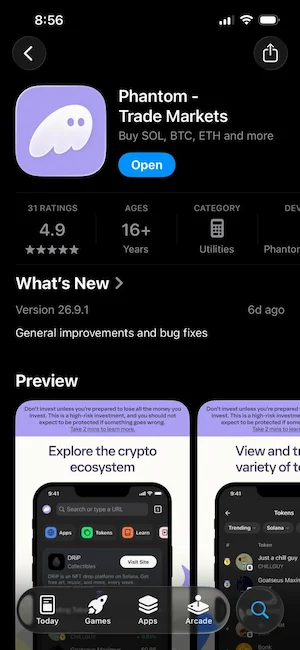
Only download from the official store listing. Check the developer name and review count before installing. Fake apps appear regularly and look identical to the real one.
Step 2: Create Your Wallet and Set a PIN
Open the app and tap Create a New Wallet. You will be asked to set a 4-digit PIN that you will use to restore your wallet on other devices. After that, create a password that unlocks Phantom on your current device only. You will also choose a Phantom username, which is a handle other users can use to send you funds directly without needing your full wallet address.
Step 3: Enable Biometric Security
After setting your PIN, Phantom will ask if you want to enable biometric authentication. This means you can unlock the app with Face ID or a fingerprint instead of typing your password every time. Turn this on. It makes the app faster to open and adds a layer of protection against anyone who picks up your phone.
Step 4: Back Up Your Recovery Phrase
Even if you signed up with email, your wallet also has a seed phrase you can export as a backup. Go to Settings, then Security and Privacy, then Show Recovery Phrase. Write down your secret recovery phrase on paper and store it offline. This is especially important if your phone is ever lost or damaged.
How to Import an Existing Phantom Wallet
If you already have a Phantom Wallet on another device and want to access it on a new one, you do not create a new wallet. Instead you import it. On the welcome screen, choose I Already Have a Wallet and pick your recovery method.
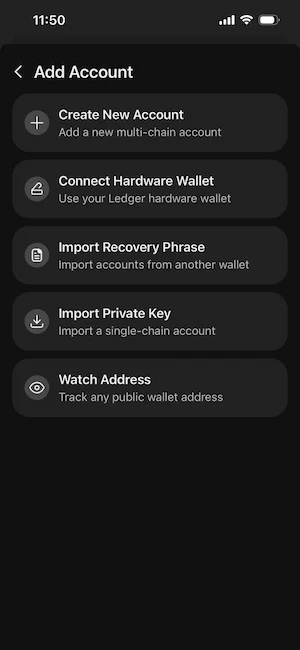
Import Using a Recovery Phrase
Select the recovery phrase option, type in your 12 words in the correct order, and set a new password for the device. This gives you full access to the same wallet and all its assets.
Import Using Email or Social Login
If you originally created your wallet with a Google account or Apple account, select that option and sign in with the same account. Enter your 4-digit PIN to confirm your identity. Phantom will restore your wallet automatically.
How to Add Crypto to Your Phantom Wallet
A newly created wallet has a zero balance. Before you can do anything on-chain you need to fund it. There are two main ways to add crypto.
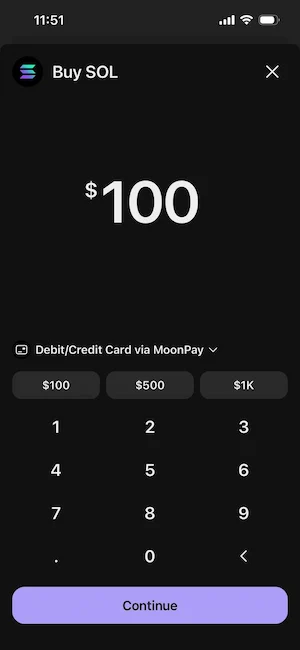
On Solana, the native token is SOL. You need a small amount of SOL in your wallet to pay for transactions, even when you are sending other tokens. To understand what SOL actually is and why it plays this role, see our overview of what SOL is.
Buy Crypto Directly Inside Phantom
Click or tap Buy in your wallet. Phantom partners with MoonPay, Coinbase Pay, PayPal, and Robinhood. You can pay with a credit card, debit card, Apple Pay, or Google Pay. The crypto arrives in your wallet within a few minutes. Availability depends on your region.
Transfer Crypto From an Exchange
If you already hold crypto on a centralized exchange like Coinbase or Kraken, you can send it directly to your Phantom wallet. Inside Phantom, click Receive. Select the network you want to use and copy your wallet address or scan the QR code. Go to your exchange, find the withdraw or send function, paste your Phantom address as the deposit address, and confirm the transfer.
Before sending, always confirm the network matches on both ends. If you send Solana assets over the wrong network, the funds will be lost.
For a detailed walkthrough of moving funds, our guide on how to transfer Solana covers the full process step by step.
How to Send and Receive Tokens on Phantom
Once your wallet has funds, sending and receiving is straightforward.
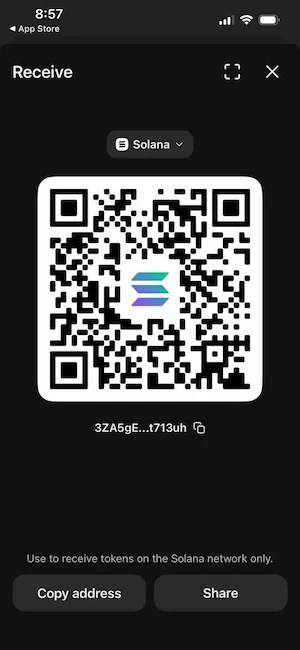
To receive crypto, click Receive, pick the network, and share your wallet address or QR code with the sender. When the transaction confirms, the funds appear in your wallet automatically. You can track everything in the Activity tab.
To send tokens, click Send, choose the asset and network, enter the recipient address, and specify the amount. Before confirming, review the transaction fees shown on the confirmation screen. Always double-check the address you are sending to. Blockchain transactions cannot be reversed. A wrong address means the funds are gone.
For larger amounts, paste the address and then verify the first and last four characters against what the recipient shared with you. Address poisoning attacks work by sending you dust from an address that looks almost identical to one you have used before, hoping you copy it from your history by mistake.
How to Swap Tokens in Phantom Wallet
One of the most useful features in Phantom is the built-in token swap. You can exchange one token for another directly inside the wallet without going to an external exchange or DEX.
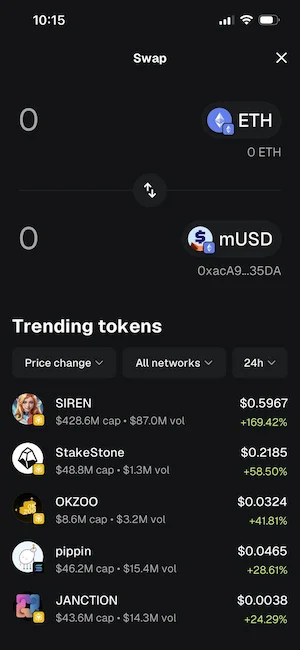
Click Swap, select the tokens you want to exchange, enter the amount, and Phantom routes the trade through the best available DEX automatically. You will see the estimated output and the slippage tolerance before confirming.
Phantom also supports cross-chain swaps, which let you move tokens between networks like Solana and Ethereum in a single step. Bitcoin swapping is not currently supported through the swap function.
For most users, leaving slippage on Auto is fine. If a swap keeps failing, you can increase it manually, but a higher slippage means you may get a worse rate on the trade.
How to Stake SOL in Phantom Wallet
Phantom lets you stake SOL directly from the wallet without sending your funds anywhere. Staking means you delegate your SOL to a validator who helps run the Solana network, and in return you earn staking SOL rewards. Current returns are typically in the range of 5 to 7 percent APY, depending on the validator you choose.
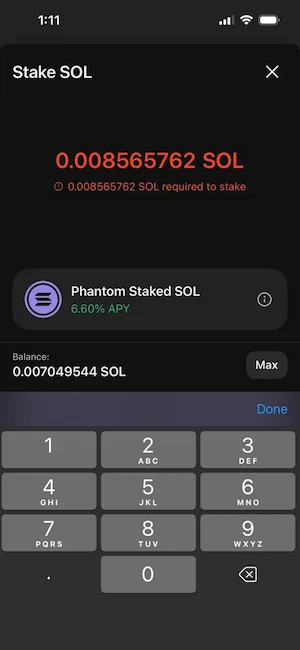
There are two ways to do it inside Phantom.
Native staking – Go to your SOL balance, tap More, then Stake SOL. Choose a validator from the list. Look for low fees, high uptime, and a solid track record. Enter the amount you want to stake and confirm. Your SOL stays in your wallet and starts earning rewards in the next epoch.
Liquid staking – Instead of locking your SOL with a single validator, you receive a liquid staking token in return. This token represents your staked position and can be used in other DeFi protocols while still earning rewards.
To understand the mechanics behind how Solana processes transactions and rewards validators, that background helps when choosing where to stake.
Phantom is your gateway to the Solana ecosystem and beyond. When you visit a compatible platform, whether it is a DeFi protocol, an NFT marketplace, or a blockchain game, you will see a button that says something like Connect Wallet.
Click it, select Phantom from the list, and a popup will appear asking you to approve the connection. This only gives the site permission to see your wallet address and request transactions. It does not give it access to your funds.
When you perform an action on the platform, such as buying an NFT or swapping tokens, Phantom will show you a transaction approval window. Read what it says before you click approve transaction. Check which assets will leave your wallet and how much you will pay in fees. If anything looks off, reject it.
Only connect to trusted platforms you know and have verified. Phantom flags sites it recognizes as malicious, but scammers constantly create new ones that have not been flagged yet. When in doubt, search for the project’s official social channels and find the correct link there rather than clicking a link in a comment or a direct message.
Phantom supports decentralized applications built on Solana natively, but also connects to dApps on Ethereum, Base, Polygon, and other supported networks. The connection process is the same across all of them.
Phantom Wallet Security Tips
Phantom has solid built-in phantom wallet security features, but a wallet is only as safe as the person holding it. Most losses happen because of human error, not technical failures.
Protect Your Recovery Phrase
Your recovery phrase is the master key to everything in your wallet. Write it on paper. Keep it in offline storage, away from phones, computers, and cameras. Consider making two copies and keeping them in different locations.
Never share it with anyone. Not with someone claiming to be from Phantom support. Not with a friend. Not with a website asking you to verify your wallet. If you type your phrase into any website or app that is not the official Phantom wallet during a fresh setup, you have given your wallet away.
Use a Hardware Wallet for Larger Holdings
Phantom connects to Ledger hardware wallets. If you hold significant amounts of crypto, connecting a hardware wallet means your private keys stay on the device and never touch the internet. Use Phantom as your daily spending wallet and move larger amounts to cold storage on the Ledger.
Watch Out for Phishing and Fake Apps
Search results, app stores, and social media are full of fake versions of popular wallets. Phishing sites are designed to look exactly like the real thing. Before entering any credentials or approving any transaction, check the URL against the official Phantom website.
Never download a fake Phantom app from a link someone sent you. Always go directly to phantom.com or the official app store listing. If you are not sure whether a site is legitimate, do not connect your wallet to it.
Also go through Settings and revoke approvals for any dApps you no longer use. Old, unused approvals are a risk if that platform is ever exploited.
Is Phantom Wallet Safe?
Yes, is Phantom Wallet safe is one of the most common questions from new users, and the short answer is that it is as safe as you make it. Phantom itself is a well-audited, widely used non-custodial wallet with no history of its core security being compromised.
Being a hot wallet means it is connected to the internet, which makes it a different risk profile than cold storage. For everyday amounts and regular use, Phantom is a solid choice. For large long-term holdings, pairing it with a Ledger integration is the right move.
Phantom’s built-in scam detection flags malicious transactions and known bad actors automatically. It requires no personal information to use, which limits your data exposure. It does not control your keys at any point.
The biggest real-world risk is not a flaw in Phantom itself. It is a user giving away their recovery phrase, downloading a fake version of the app, or approving a malicious transaction. Stay alert and the wallet does its job well.
Phantom Wallet FAQs
What Is Phantom Wallet Used For?
Phantom wallet is used to store, send, and receive crypto assets, swap tokens, manage NFTs, stake SOL, and connect to dApps across multiple blockchains. It acts as your personal interface to Solana and other supported networks. Think of it as a browser for on-chain activity, plus a secure home for your assets.
Can Phantom Wallet Store Bitcoin?
Yes. Phantom Wallet Bitcoin support was added in 2024. You can hold BTC, send and receive Bitcoin, and manage Ordinals and BRC-20 tokens inside the same wallet you use for Solana and Ethereum.
How Do I Recover My Phantom Wallet?
To recover Phantom Wallet on a new device, open the app or extension and choose I Already Have a Wallet. Enter your recovery phrase in the correct order and set a new password. If you signed up with email, use the same Google or Apple account and your PIN. Without the phrase or email access, the wallet cannot be restored by anyone, including Phantom.
How Do I Change My Phantom Wallet Password?
To change Phantom Wallet password, open the wallet and go to Settings, then Security and Privacy. If you remember your current password, you can change it from there. If you have forgotten it, use the Forgot Password option and reset the wallet using your recovery phrase.
Does Phantom Wallet Support Ethereum?
Yes. Phantom Wallet Ethereum support has been part of the wallet for several years. You can hold and manage ERC-20 tokens, connect to Ethereum dApps, and swap tokens on the network. Phantom is a full multichain wallet, not just a Solana product.
Is Phantom Wallet Free to Use?
Creating a phantom wallet free of charge – there is no subscription and no account fee. You will pay standard blockchain transaction fees when you send tokens or interact with dApps, and Phantom takes a small fee on swaps. On Solana, gas fees are extremely low, typically fractions of a cent. On Ethereum they vary with network congestion.
Wrapping Up
Setting up Phantom Wallet takes a few minutes and the process is the same whether you are on desktop or mobile. Download from an official source, create your wallet, save your secret recovery phrase somewhere offline, and fund the wallet. From there you can send, receive, swap, stake, and explore everything Solana and the other supported networks have to offer.
The most important thing to get right is the recovery phrase. Everything else you can figure out as you go. If you need to understand more about the network underneath Phantom before you start, our guide to buying Solana is a good next step for new users.
If you ever need to know how to set up Phantom Wallet again on a new device, come back here. The steps do not change much and this page will be kept current.