Learning how to create a Solana wallet takes less than five minutes. You download a free app, generate a wallet address, write down a recovery phrase, and you are done. From that point, you can store, send, and receive SOL and any other token on the network. This guide covers the two most widely used options, Phantom and Solflare, with separate steps for desktop and mobile, plus everything you need to know about securing your wallet before you add any funds.
What Is a Solana Wallet?
A Solana wallet is a tool that manages the private key that proves you own your tokens on the Solana blockchain. Your SOL and other assets live on-chain, not inside the app. The wallet stores the key that authorizes every transaction you sign. Whoever holds that key controls the funds.
Every Solana wallet gives you two things: a Solana wallet address you share publicly to receive funds, and a seed phrase you keep private as the master backup. The address is a string of 43 or 44 characters, usually starting with a letter, for example So11JSgBGXtPuLPjQiKy3u5CVuRXVMFnKuUELA2JRNu9x. It is safe to share. The seed phrase, the 12 or 24-word recovery backup, is never shared with anyone under any circumstances.
Wallets split into two main categories. Non-custodial wallets give you direct ownership of your private keys. No company holds them on your behalf. If you lose the seed phrase, no support team can recover your funds. Custodial wallets, which are exchange accounts, hold the keys for you. They are easier to recover but you are trusting a third party with ownership. Every wallet in this guide is non-custodial.
Within the non-custodial category, wallets also split by where they store keys. Hot wallets are browser extensions or mobile apps connected to the internet, convenient for daily use. Cold wallets are hardware devices like Ledger that keep keys offline and require physical confirmation for every transaction, the right choice for significant holdings.
To understand what SOL is and why the network operates the way it does, our guide on what SOL is covers the token’s function and role within the Solana network.
Which Wallet Should You Use?
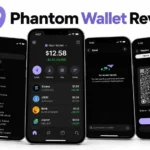
Two wallets cover the needs of most Solana users in 2026: Phantom and Solflare. Both are fully non-custodial, free to download, and available as browser extensions and mobile apps. They support SOL, all SPL tokens, NFTs, staking, and DeFi connections.
| Feature | Phantom | Solflare |
|---|---|---|
| Best for | Beginners, daily use, NFTs | Staking, validator control |
| Browser extension | Chrome, Firefox, Brave, Edge | Chrome, Firefox, Brave, Edge |
| Mobile app | iOS and Android | iOS and Android |
| Multichain | Yes (8 chains) | Solana-native |
| Ledger support | Yes | Yes |
| Staking interface | Basic | Advanced validator analytics |
| Cost | Free | Free |
For most people creating their first Solana wallet, Phantom is the right starting point. The interface is the cleanest of any Solana wallet, the setup process guides you through every step with plain language, and it works well for everything from casual SOL holding to NFT minting and DeFi. Solflare is the better choice if staking and validator selection are your primary focus. Many users eventually run both, using Phantom as their daily interface and Solflare for staking management.
For a full comparison of every major Solana wallet including hardware options, our guide on the best Solana wallets covers each option with detailed pros, cons, and use case recommendations.
How to Create a Phantom Wallet on Desktop
The desktop browser extension is the most common way to use Phantom. It takes about three minutes from start to finish.
Step 1: Download the Phantom Extension
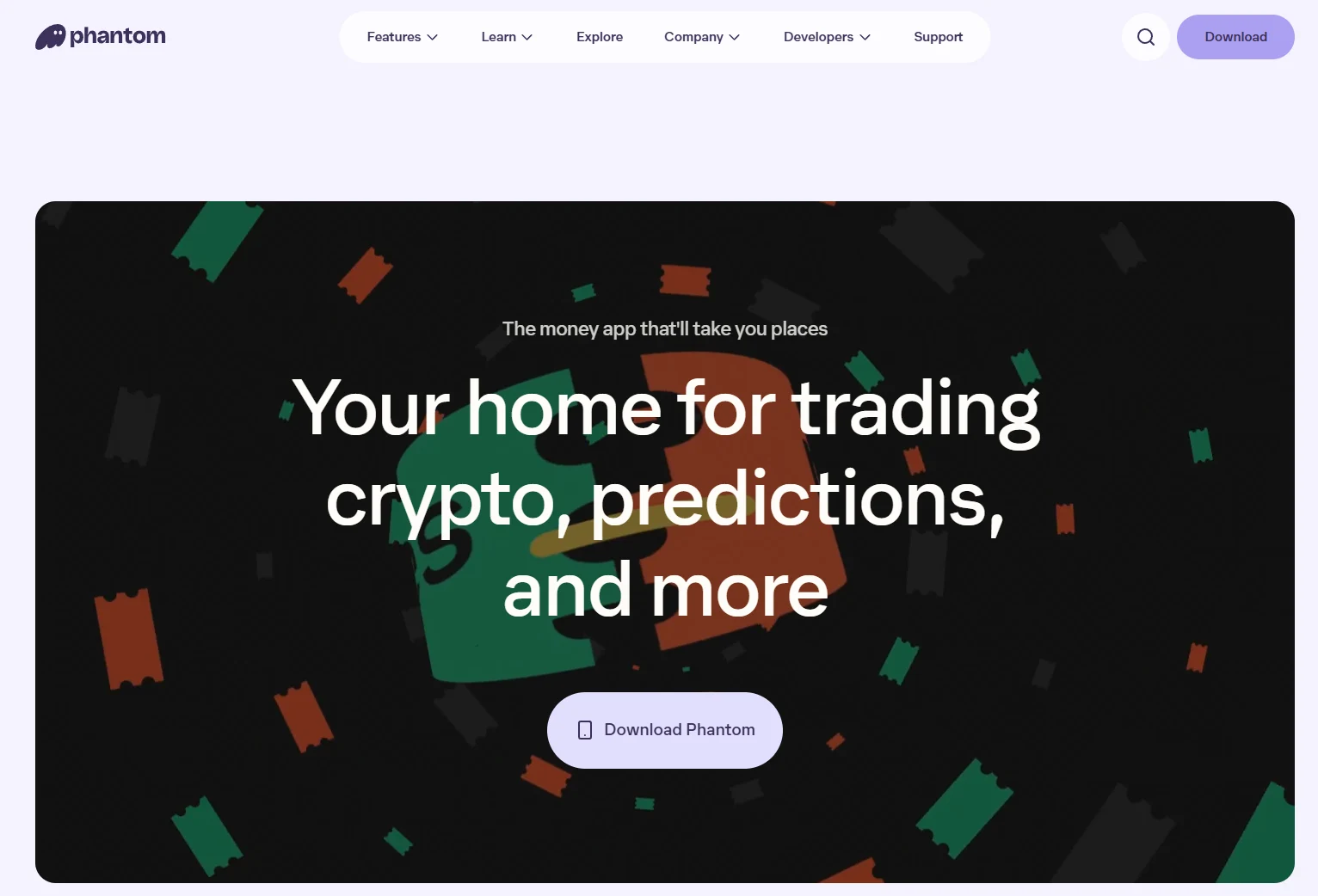
Go to phantom.com and click Download. Select your browser. Chrome, Firefox, Brave, and Edge are all supported. You are taken to the official extension store for your browser. Click Add to Chrome or the equivalent for your browser, then confirm by clicking Add Extension in the popup. The extension installs automatically and opens in a new tab.
Only download from phantom.com or your browser’s official extension store. Fake versions of Phantom exist and are designed to steal your funds. Check the URL before installing anything.
Step 2: Create a New Wallet
The extension opens to a welcome screen. Click Create a New Wallet. You will be asked to create a password. This password unlocks Phantom in your current browser only. It does not replace your seed phrase and cannot be used to restore your wallet on another device. Choose something strong and do not reuse a password from another account.
Step 3: Save Your Secret Recovery Phrase
Phantom displays your secret recovery phrase, a sequence of 12 words generated specifically for your wallet. This is the only backup for your wallet. Write every word down by hand on paper, in the exact order shown. Number them as you go.
Do not take a screenshot. Do not type the phrase into a notes app, email, or cloud storage. Do not photograph it. The only safe copy is one that has never touched a device connected to the internet. Treat the written copy the way you would treat that amount of cash in physical form.
After writing the phrase down, Phantom asks you to confirm it by selecting the words in order. This step verifies you copied it correctly before you move forward. Complete it carefully.
Step 4: Pin Phantom to Your Browser
After setup, look for the Phantom icon in your browser toolbar. If you do not see it, click the puzzle piece icon in Chrome’s top right corner to see all installed extensions. Click the pin icon next to Phantom. It will appear in your toolbar from that point on.
Your wallet is ready. Click the extension icon to open it and see your Solana wallet address at the top. Copy it from the Receive button to share with anyone sending you SOL or other tokens.
How to Create a Phantom Wallet on Mobile
The Phantom mobile app is available for iOS and Android and offers the same full feature set as the desktop extension with the addition of biometric login.
Step 1: Download the Phantom App
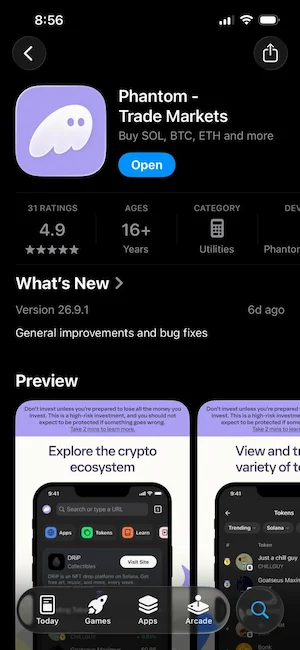
Open the App Store on iPhone or Google Play on Android and search for Phantom Wallet. Tap Install. Before downloading, check that the developer name and review count match the official listing. Fake apps appear in search results regularly and look identical to the real one at first glance. You can also go to phantom.com on a desktop and scan the QR code to go directly to the correct listing on your phone.
Step 2: Create Your Wallet and Set a Password
Open the app and tap Create a New Wallet. Set a password that you will use to unlock the app on this device. You will also be asked to set a Phantom username, a handle other users can send funds to directly without needing your full wallet address.
Step 3: Write Down Your Secret Recovery Phrase
The app displays your secret recovery phrase, the same 12-word backup that the desktop extension generates. Write every word down on paper in order. The same rules apply: no screenshots, no digital notes, no cloud storage. Two written copies stored in separate locations is the right approach for any balance you would be unhappy to lose.
Step 4: Enable Biometric Authentication
After saving the phrase, the app offers to enable Face ID or fingerprint unlock. Turn this on. It makes the app faster to open and prevents anyone who picks up your phone from accessing the wallet without your face or fingerprint. Your password remains the backup unlock method if biometrics fail.
Your Phantom mobile wallet is ready. Tap Receive to see your Solana wallet address and QR code, which you can share to receive funds.
How to Create a Solflare Wallet on Desktop
The Solflare desktop setup follows the same general pattern as Phantom with a few differences in how it presents validator and staking information during the wallet creation flow.
Step 1: Download the Solflare Extension
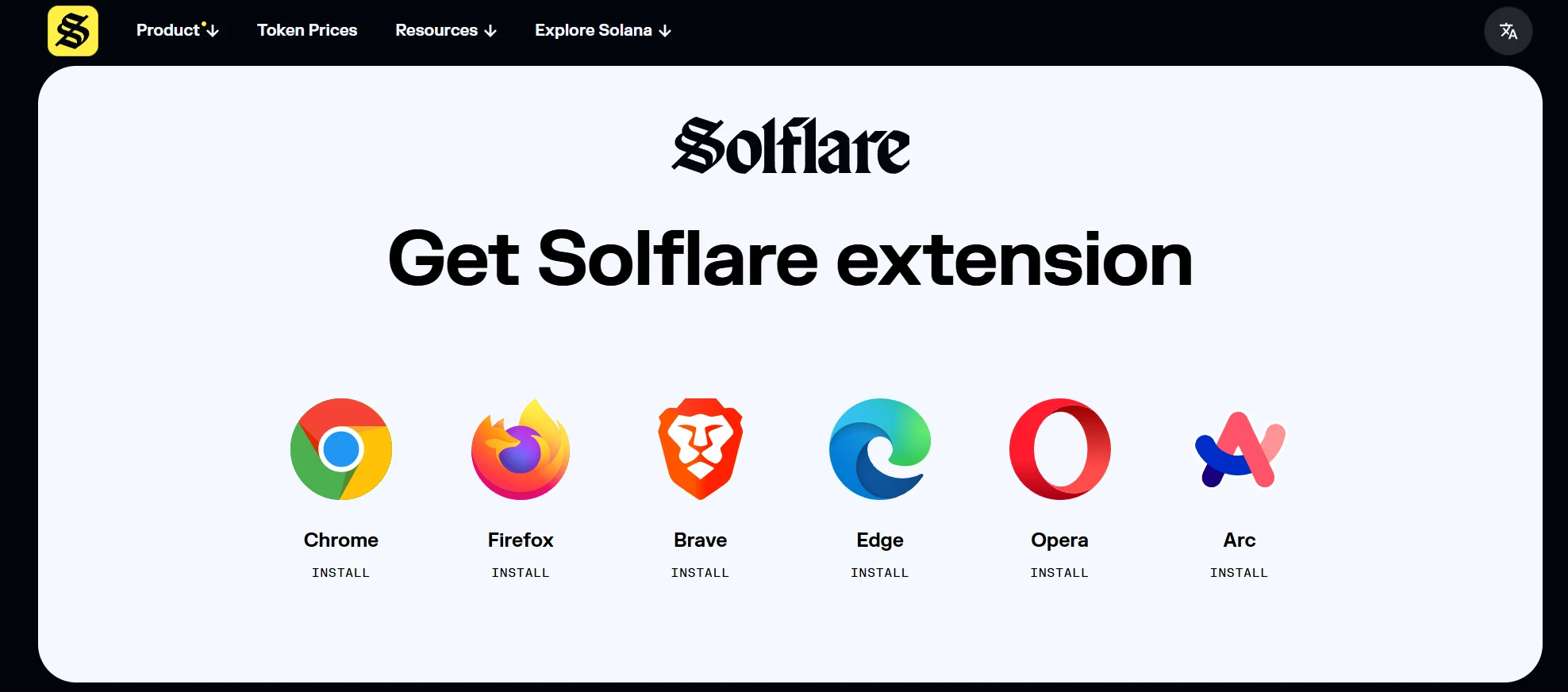
Go to solflare.com and click Download. Select your browser. The extension installs from your browser’s official store. Open it after installation. Always download directly from solflare.com to avoid phishing clones.
Step 2: Create a New Wallet
Click Create a New Wallet on the welcome screen. Solflare offers two creation methods: a standard seed phrase backup, or email and social login for users who prefer a simpler recovery path. The seed phrase route gives you direct custody of your keys and is the more secure option. The email route is easier to recover but introduces a third-party dependency into your wallet access.
Step 3: Save Your Recovery Phrase
If you chose the seed phrase route, Solflare displays your 24-word recovery phrase. Write it down completely on paper. Solflare uses a 24-word phrase by default, compared to Phantom’s 12-word default, which provides a longer key for the same mathematical security standard. Both follow the BIP-39 format, which means the same phrase can restore your wallet in any compatible wallet app.
Store the written phrase somewhere safe and offline. Consider a second copy in a different location. A fireproof metal backup plate, such as a Cryptosteel, is a practical long-term storage option for significant holdings.
Step 4: Confirm the Phrase and Complete Setup
Solflare asks you to re-enter several words from the phrase to confirm you wrote them down correctly. Complete this step. Set a password to lock the extension in your browser. Your Solflare wallet address appears on the main screen after setup completes. Click Receive to copy it.
How to Create a Solflare Wallet on Mobile
Step 1: Download the Solflare App
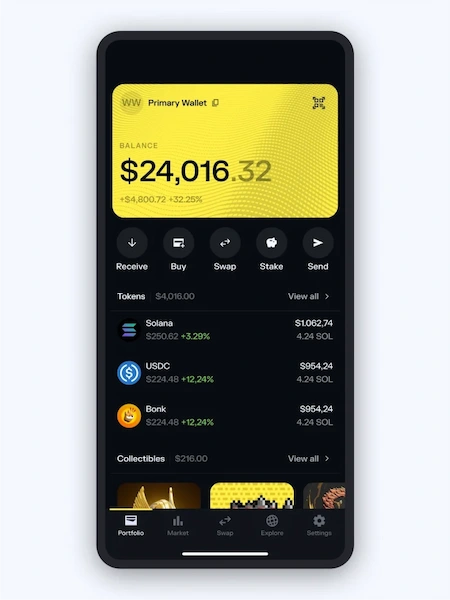
Search for Solflare in the App Store or Google Play. Install the official app from solflare.com or directly from the store listing. Open it after installation.
Step 2: Create Your Wallet
Tap Create a New Wallet. Follow the setup flow to generate a new wallet. Set a PIN code to lock the app on your device. The app supports biometric unlock after the PIN is set.
Step 3: Save Your Recovery Phrase
The app displays your recovery phrase. Write it down on paper immediately and keep it offline. Do not proceed until you have a physical written copy. Tap confirm and verify the selected words in order when prompted.
Your Solflare mobile wallet is ready. Tap Receive in the main interface to see your Solana address and QR code.
How to Import an Existing Solana Wallet
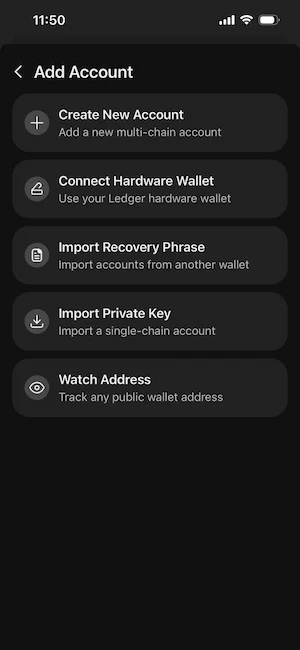
If you already have a Solana wallet on another device or in another app and want to access it in Phantom or Solflare, you import it using your recovery phrase. On the welcome screen of either app, choose I Already Have a Wallet and enter your phrase in the correct order. The wallet imports with its full balance and history.
Because Phantom and Solflare both follow the BIP-39 standard, the same seed phrase works in either app. If you set up a Phantom wallet and want to access it in Solflare for the staking analytics, enter your Phantom phrase when importing. The same address and funds appear in both apps.
You cannot import using only a private key in the current versions of either wallet through the standard mobile setup flow. The full seed phrase is required. If you have a Ledger hardware wallet, both apps connect to it through the Connect Hardware Wallet option rather than requiring you to enter the device’s recovery phrase at all.
For a detailed walkthrough of setting up Phantom including every configuration option and the first dApp connection, our guide on how to set up Phantom Wallet covers every step in full.
How to Find Your Solana Wallet Address
Your Solana wallet address is the public identifier you share when someone wants to send you SOL or other tokens. It is safe to share with anyone. Sharing it gives no one access to your funds or keys.
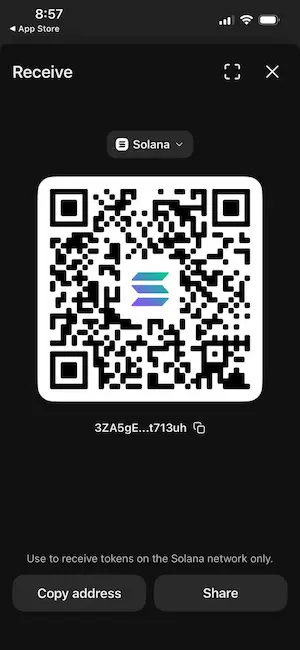
In Phantom, click the wallet icon at the top of the extension or tap your account name in the mobile app. Your address appears below your account name. Tap Copy to copy it to your clipboard. You can also tap Receive to display a QR code that others can scan to send funds directly.
In Solflare, the same Receive button in the main interface shows your address and QR code.
A Solana address is 43 or 44 characters long. It looks like a long string of letters and numbers with no 0x prefix. This format is specific to Solana’s Base58 encoding and looks nothing like an Ethereum address. Never send SOL to an Ethereum address. Funds sent to the wrong address type are lost permanently.
Before sharing your address with a sender, verify the first and last four characters match when you paste it. Address-poisoning attacks work by sending dust from an address that looks almost identical to one you have used before, hoping you copy the wrong address from your transaction history the next time you send.
How to Add SOL to Your New Wallet
A newly created wallet has a zero balance. You need SOL before you can do anything on-chain, including paying the transaction fees that apply to every action on the network.
There are three ways to fund a new wallet. The first is to buy SOL on a centralized exchange and withdraw it to your wallet address. Copy your Solana wallet address from the Receive button, go to your exchange’s withdrawal section, paste the address, select the Solana network, and confirm. Always send a small test amount first before sending the full balance to verify the address and network are correct. Our guide on how to buy Solana covers the full purchase and withdrawal process across the major exchanges.
The second option is the fiat on-ramp built into both Phantom and Solflare. In Phantom, tap Buy in the main interface. The wallet connects to MoonPay, Coinbase Pay, and other providers. You pay with a card, Apple Pay, or Google Pay and SOL arrives in your wallet within minutes. Availability depends on your region.
The third option is to receive SOL from another wallet. If you already hold SOL in another self-custody wallet, send it to your new address the same way you would send to an exchange.
On Solana, transaction fees are fractions of a cent. Keep at least 0.05 SOL in your wallet at all times to cover fees for future transactions. Running out of SOL mid-session means you cannot send tokens, claim staking rewards, or approve any on-chain action until you add more. For a full breakdown of how fees work and when priority fees apply, our guide on Solana transaction fees explains the cost structure.
How to Send and Receive SOL
Once your wallet has a balance, sending and receiving SOL is the same flow in both Phantom and Solflare.
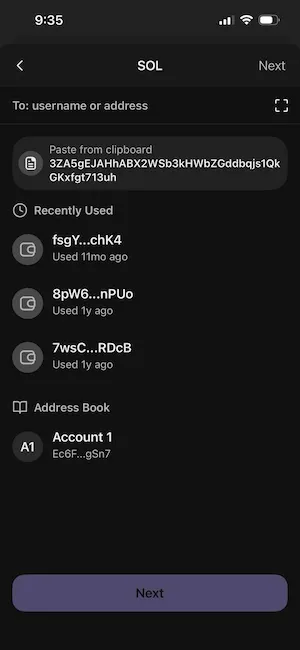
To receive SOL, tap or click Receive. Copy your address or show the QR code to the sender. When the transaction confirms on-chain, the funds appear in your wallet automatically. Solana confirms transactions in under a second, so received funds typically appear almost instantly.
To send SOL, tap or click Send. Select SOL as the asset, enter the recipient’s address, and type the amount. Review the confirmation screen, which shows the recipient address, amount, and estimated network fee. Always verify the recipient address before confirming. Double-check the first and last four characters against what the recipient shared with you. Blockchain transactions are irreversible. A wrong address means the funds are gone permanently.
Both Phantom and Solflare display your transaction history in the Activity or History tab. You can also verify any transaction on Solscan, Solana’s block explorer, by entering your wallet address or transaction signature.
How to Secure Your Solana Wallet
The wallet setup takes five minutes. The security habits you build around it determine how safe your funds stay over months and years. These are the ones that matter most.
- Write your seed phrase on paper and store it offline. This cannot be repeated enough. Your seed phrase is the only way to recover your wallet. Write every word in order. Store the paper somewhere safe, waterproof, and not accessible to others. Two copies in separate locations removes the single point of failure.
- Never share your recovery phrase with anyone. No support agent from Phantom, Solflare, or any other platform will ever ask for your seed phrase. Anyone who asks for it is attempting to steal your wallet. This applies to people in Discord, Telegram, email, and anywhere else.
- Never screenshot or digitally store your phrase. Phone cameras back up automatically to cloud services. A screenshot of your phrase is a digital copy accessible to anyone who compromises your account. The only safe copy is physical, written on paper or engraved on metal.
- Enable biometric or PIN lock. Both apps support Face ID and fingerprint unlock. Use them. They add a layer of protection against anyone who picks up your unlocked phone.
- Read transaction previews before approving. Phantom’s Blockaid integration shows a plain-language summary of what a transaction will do before you sign it. Read it. If it does not match what you expected to happen, reject and investigate.
- Use a hardware wallet for significant holdings. A browser extension is convenient for daily use but is a hot wallet with online exposure. For SOL you plan to hold long term or in significant amounts, a Ledger hardware wallet paired with Phantom or Solflare keeps your private keys completely offline.
For a complete guide on long-term storage options including hardware wallet setup and seed phrase backup methods, our guide on how to store SOL long term covers everything from Ledger setup to metal seed phrase storage.
What to Do After Creating Your Solana Wallet
Once your wallet is set up and funded, the network gives you access to a wide range of on-chain activity. Staking is the most straightforward next step for most new holders. You delegate your SOL to a validator, earn rewards every two to three days, and your tokens stay in your wallet throughout. Current yields on Solana sit between 6% and 8% APY. Both Phantom and Solflare handle the delegation flow directly inside the app.
From the same wallet, you can connect to DeFi protocols on Solana, swap tokens on Jupiter or Raydium, manage NFTs, and interact with any dApp on the network. The wallet is your entry point to everything Solana supports. Understanding how the network processes transactions and reaches consensus helps when evaluating which protocols are safe to use. Our guide on how Solana works covers the validator architecture and transaction finality model.
If you want to buy more SOL without going through a traditional exchange with full identity verification, there are options. Our guide on how to buy Solana without KYC covers non-custodial swap services and low-verification on-ramps. Alternatively, if you prefer to use PayPal as your payment method, our guide on how to buy Solana with PayPal covers which platforms support it and how fees compare.
How to Create a Solana Wallet: FAQs
Can I Create a Solana Wallet for Free?
Yes. Both Phantom and Solflare are free to download and use. There is no fee to create a wallet. You will pay small Solana network fees when you send tokens or interact with dApps, but these are fractions of a cent and go to the network’s validators, not to the wallet provider. The wallet app itself costs nothing.
How Long Does It Take to Create a Solana Wallet?
Under five minutes if you work at a normal pace. The actual steps, downloading the app, clicking Create New Wallet, and writing down your recovery phrase, take about two to three minutes. Writing down the seed phrase carefully takes the most time because you should not rush it. A mistake there creates a problem you cannot fix later.
What Is a Solana Wallet Address?
A Solana wallet address is a 43 or 44-character string assigned to your wallet on the Solana blockchain. It uses Base58 encoding and looks like a long sequence of letters and numbers with no 0x prefix. You share it publicly to receive SOL and other tokens. Anyone can see an address and the funds it holds on a block explorer, but only the holder of the corresponding private key can authorize transactions from it.
Is Phantom or Solflare Better for Beginners?
Phantom is the better starting point for most beginners. The interface is cleaner, the setup flow is simpler, and the wallet covers everything most new users need including staking, swaps, and NFT management. Solflare is the better choice once staking becomes a priority and you want detailed analytics on validator commission rates and uptime history. Starting with Phantom and adding Solflare later is a common approach.
What Happens if I Lose My Seed Phrase?
If you lose your seed phrase and also lose access to the device where the wallet is installed, the wallet cannot be recovered. No company, including Phantom or Solflare, can restore access without the phrase. The blockchain has no account recovery system. This is why writing down the phrase and storing it safely is the most important step in the entire setup process. The funds are not gone immediately if you lose a device; they are gone if you lose the phrase and the device at the same time.
Do I Need SOL to Create a Solana Wallet?
No. Creating the wallet itself is free and requires no SOL. You only need SOL when you want to send tokens or interact with dApps, because every on-chain action requires a small network fee. Keep at least 0.05 SOL in your wallet at all times to cover routine transactions. Your wallet address exists on-chain from the moment you create it, even with a zero balance.
Can I Have Multiple Solana Wallets?
Yes. Phantom and Solflare both support multiple accounts under a single app installation. In Phantom, click the account selector at the top of the extension and choose Add or Connect Wallet to create a new account. Each account has a separate Solana wallet address derived from the same seed phrase. You can also create a completely separate wallet with a new seed phrase for complete separation between accounts. Many users maintain a main wallet for holdings and a separate low-balance wallet for connecting to new protocols and minting.
How Do I Add SOL to My New Wallet?
Tap Receive in either Phantom or Solflare and copy your wallet address. Go to the exchange or wallet where your SOL currently sits, paste your new address as the destination, select the Solana network, and confirm. Send a small test amount first before transferring larger sums. Always verify the Solana network is selected on both ends. Sending SOL over the Ethereum or BNB chain sends it to an inaccessible address. If you do not yet hold any SOL, our guide on how to buy Solana covers every purchase method available.